For team leads
Review how one task gets a clear owner.
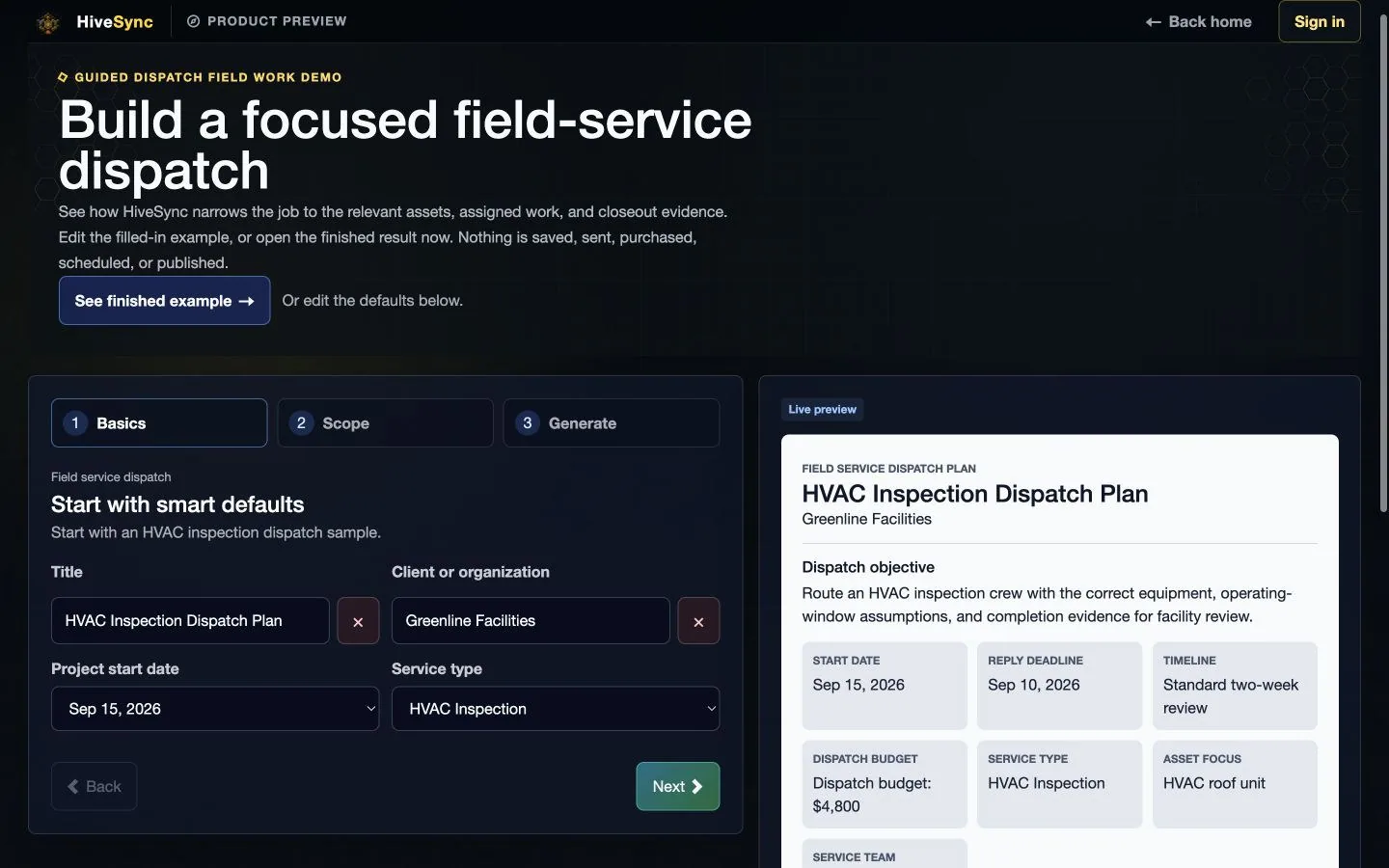
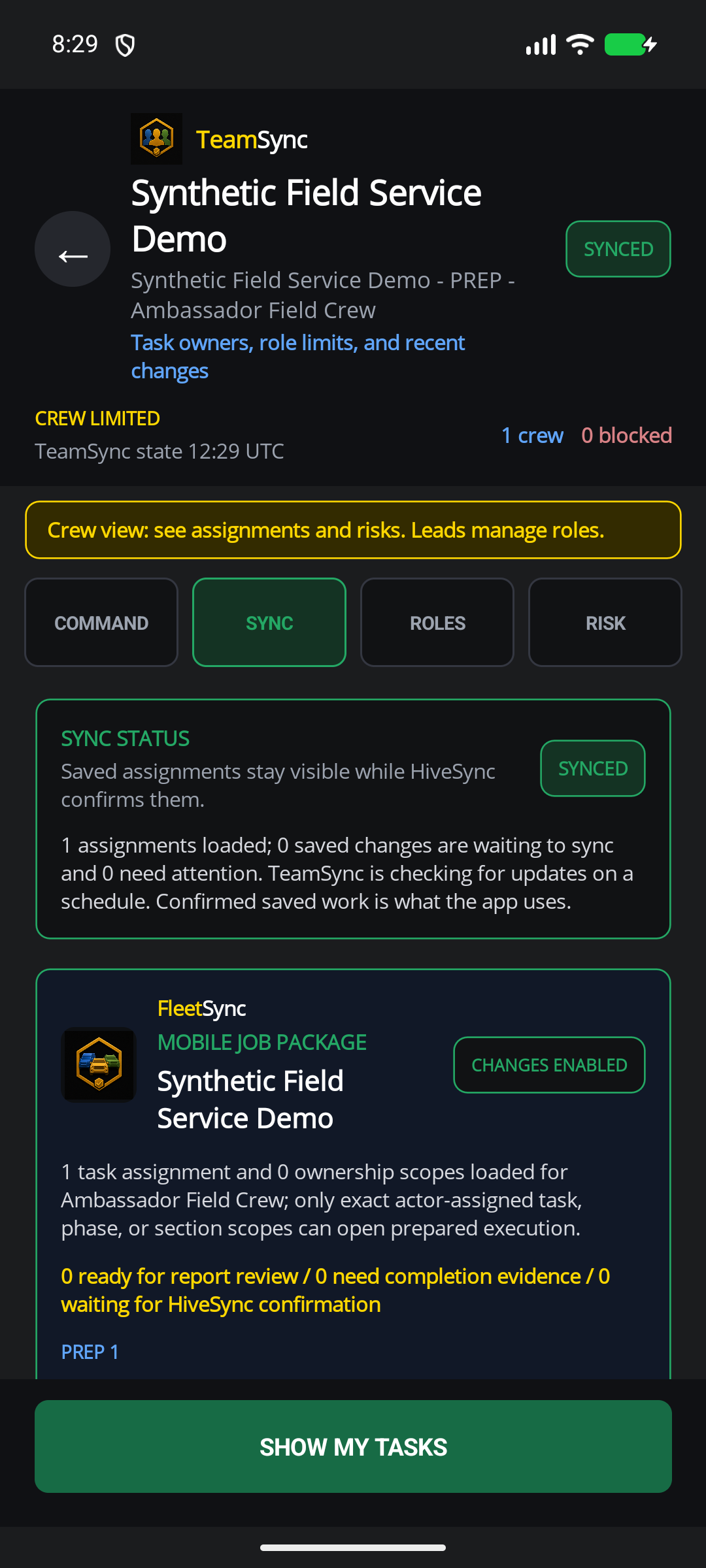
Compare a Web setup with a separate mobile assignment example.
Why this helps
No team, workspace, seat, assignment, message, or audit event is created.
- Plan
- Do
- Review
Compare separate Web and mobile examplesCompare Web setup with a mobile assignment.
Separate TeamSync examples
Compare Web setup with a mobile assignment.
These are separate synthetic examples: a Studio Team setup and an Ambassador Field Crew assignment. They do not share a job or prove delivery, live sync, a workspace, seat, or audit event.
Web app
Mobile app
Clear work
Keep repeatable work understandable, assigned, and reviewable.
See which feature helps with the next task.
Reusable instructions
Turn team knowledge into Blueprints and reusable templates.
A clear owner
Give each assignment one visible owner and an easy handoff path.
Useful job history
Keep problems, completed work, and reports connected to the job.
Choose a plan
Choose the option that matches your work.
See the pricing page for current prices, limits, checkout, and access.
Subscription plan
Team
Team workspace plan The team-operations path for named owners, explicit handoffs, shared templates, and reviewable assignment history. Coordinate shared workspaces, named owners, role-aware handoffs, shared templates, and team reporting. Compare TeamSee other access options
Subscription plan
Enterprise
Contact HiveSync For larger teams that need private catalogs, connections to other tools, and more support. Plan a larger launch with private catalogs, connections to other tools, TeamSync controls, and added support. Discuss EnterpriseCompare more ways to buy
Check the pricing page for current prices and access. Comparing an option does not buy it.
See all stepsEach step shows the owner, the next action, and what changes when plans change.
How the work flows
Move from a reusable plan to a finished result.
Each step shows the owner, the next action, and what changes when plans change.
- 1
Create or choose the SOP
Start from an owned Blueprint or team template that matches the work.
- 2
Adapt and approve
Change the reusable instructions while keeping today's job clear.
- 3
Delegate the work
Assign named owners, due context, and role-aware next actions.
- 4
Review and improve
Use completion evidence, exceptions, and handoff history to improve the next run.
See related featuresEach card shows current availability and links to a simple feature guide.
Features for this work
Use only the features you need.
Each card shows current availability and links to a simple feature guide.
 Selected teams
TeamSync
TeamSync connects named owners, role-aware assignments, queued field updates, and confirmed completion history without pretending every update is live.
Selected teams
TeamSync
TeamSync connects named owners, role-aware assignments, queued field updates, and confirmed completion history without pretending every update is live.
 Planned invite-only pilot
RecurSync
RecurSync is planned to connect a manager-reviewed schedule, assigned work, required evidence, an intended completion receipt, and searchable property history. Public signup and checkout remain closed.
Planned invite-only pilot
RecurSync
RecurSync is planned to connect a manager-reviewed schedule, assigned work, required evidence, an intended completion receipt, and searchable property history. Public signup and checkout remain closed.
What you can use nowClear assignments before live teamwork
What you can use now
Clear assignments before live teamwork
TeamSync begins with named owners, task assignments, field updates, and handoffs that can recover after a connection problem.
- Assign approved work to one confirmed team member.
- Show whether an update is waiting, failed, or confirmed.
- Keep reassignment and completion history attached to the job.
What comes later
Wider live teamwork and large fleet coordination still need more testing across accounts, teams, and devices.
Read common questions4 answers
Questions and answers
Common questions
Does TeamSync require a constant connection?
No. HiveSync keeps updates waiting or failed until a matching HiveSync acknowledgement confirms them.
Can a team lead change an SOP?
Yes, within the owned and authorized template workflow. The current job and reusable source remain distinguishable.
Is every update live?
No. Some updates may arrive later. Wider live collaboration still needs more testing.
Which plan fits TeamSync?
Team is the natural starting point. Enterprise is for larger teams that need more control and support.